Start here
Match the symptom, then test one layer.
Stable delay, spikes, lost data and frame-time stutter need different first checks. Use the short diagnosis before opening the full evidence record.
Start with the visible pattern
Different symptoms need different first checks.
Pick the closest pattern. Applying every fix at once destroys the evidence that tells you what changed.
High but stable ping
Confirm selected server and physical distance first.
Ping spikes
Check Wi-Fi and competing household traffic.
Packet loss
Use a wired control and record when loss appears.
Stutter with steady ping
Inspect frame time and device performance separately.
The controlled fix order
Move from the easiest layer to verify.
Stop when evidence points clearly to a layer. Keep the normal connection as the route control.
Check Riot service status
If the issue is sudden or shared, rule out a current incident first.
Confirm the selected server
Keep server, mode and party conditions with the test record.
Read the pattern
Separate stable high ping, spikes, packet loss and frame-time stutter.
Test the local queue
Pause uploads, compare Ethernet and repeat on a quiet connection.
Compare routes with a control
Use the same server and time window; one good match is not a recommendation.
Use the current game client
Record the signals this game actually exposes.
Settings and labels can change between releases. Record what the current build shows and leave unavailable fields blank.
Selected server before queue
Keep the displayed server choice with mode and party leader. A party can change the practical server context.
Network RTT and packet loss
Use the in-game graphs available in the current client. Record the pattern through a match instead of copying one low value.
Client FPS or frame time
If the image hitches while network graphs remain steady, investigate rendering and device load separately.
Game-specific scenarios
Keep session context attached to the symptom.
Valorant details can change the diagnosis. Use a comparable second run instead of a generic speed-test verdict.
Solo is stable; party queue is not
Record party leader and selected server. The practical server choice may differ.
Ping jumps when someone uploads
Local queueing or bufferbloat is a stronger lead. Pause the upload and repeat.
The image stutters; network graphs stay calm
Treat this as performance evidence. Routing cannot fix a frame-time problem.
Open the retained first-party record and its limits
First-party network record
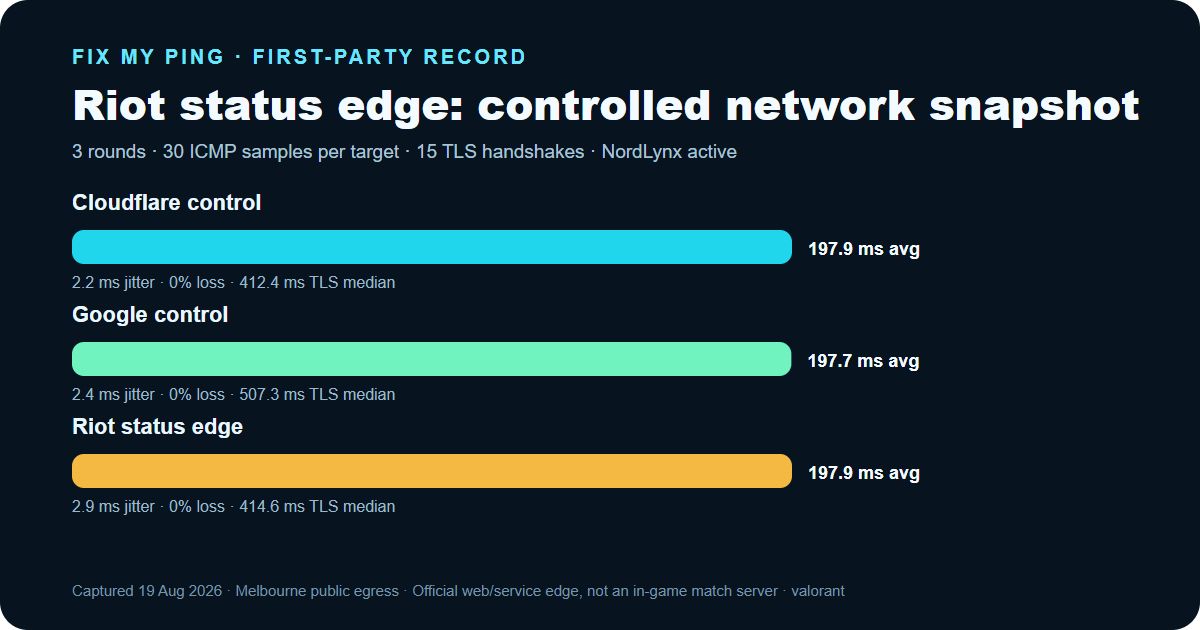
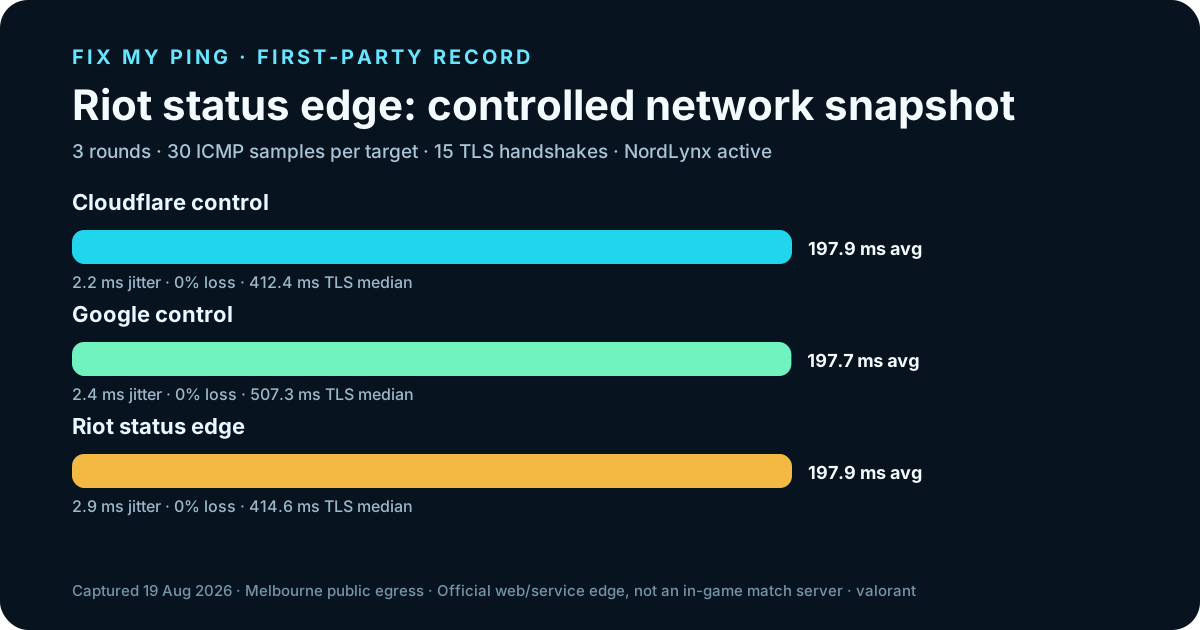
Three rounds from one disclosed device and route.
This is a real, retained network snapshot—not a simulated result and not an in-game benchmark.
- Date
- 2026-08-19 (Asia/Shanghai (UTC+08:00))
- Device
- Windows 11 desktop, Intel Core i9-12900K
- Physical access
- 1 Gbps Ethernet
- Active route
- NordLynx tunnel over Ethernet
- Observed exit
- Melbourne, Victoria, Australia · GSL Networks Pty LTD (AS137409) · Cloudflare MEL
- Official target
- Riot status edge · status.riotgames.com
| Target | ICMP average | ICMP median | Jitter | Loss | TLS median |
|---|---|---|---|---|---|
| Cloudflare control1.1.1.1 | 197.9 ms | 197.5 ms | 2.2 ms | 0% | 412.4 ms |
| Google control8.8.8.8 | 197.7 ms | 197 ms | 2.4 ms | 0% | 507.3 ms |
| Riot status edgestatus.riotgames.com | 197.9 ms | 198 ms | 2.9 ms | 0% | 414.6 ms |
What a route cannot fix
Do not buy a network answer for a non-network problem.
An alternate route is useful only as a controlled comparison after local, device and service checks.
- ×Household upload bufferbloat
- ×Wi-Fi interference
- ×A Riot service incident
- ×Frame-time stutter or device performance
Continue with context
Use the next tool that matches the evidence.
The diagnosis runs locally in your browser. The evidence kit preserves the session context and raw readings.
No ping values or answers are uploaded or stored.
Open guide →Keep a Valorant test recordDownload a blank six-run sheet for server, party, mode and network-graph evidence.
Open guide →Compare tactical-shooter symptomsUse the Tarkov guide when raid context, rubberbanding and client stutter are the stronger clues.
Open guide →Build a fair comparisonCompare repeated runs, not one highlight result.
Open guide →Official sources and limits
Check current game guidance before blaming your ISP.
Riot status and Valorant Support are the current sources for incidents and game-specific guidance. Server choice, Network RTT, packet-loss graphs and client performance are session evidence from your own current client.
FAQ
Common Valorant connection questions
Why is my Valorant ping high but stable?
Server selection, physical distance and the path are stronger starting points than Wi-Fi spikes.
How should I run a Valorant ping test?
Keep the selected server, party, mode and time window matched. Record Network RTT and packet loss through repeated sessions rather than keeping only the best reading.
What causes Valorant ping spikes?
Wi-Fi and competing uploads are common leads, but a service incident or route instability can also matter.
Is lag compensation the same as fixing my connection?
No. Game networking behavior and connection quality are different layers.